The Real Cost of App Bloat: Auditing Your Shopify Tech Stack
Every Shopify app adds 200-500ms to your load time—and you're probably running apps you don't need, paying for duplicates, and carrying ghost code from apps you uninstalled years ago. Here's how to audit and fix it.
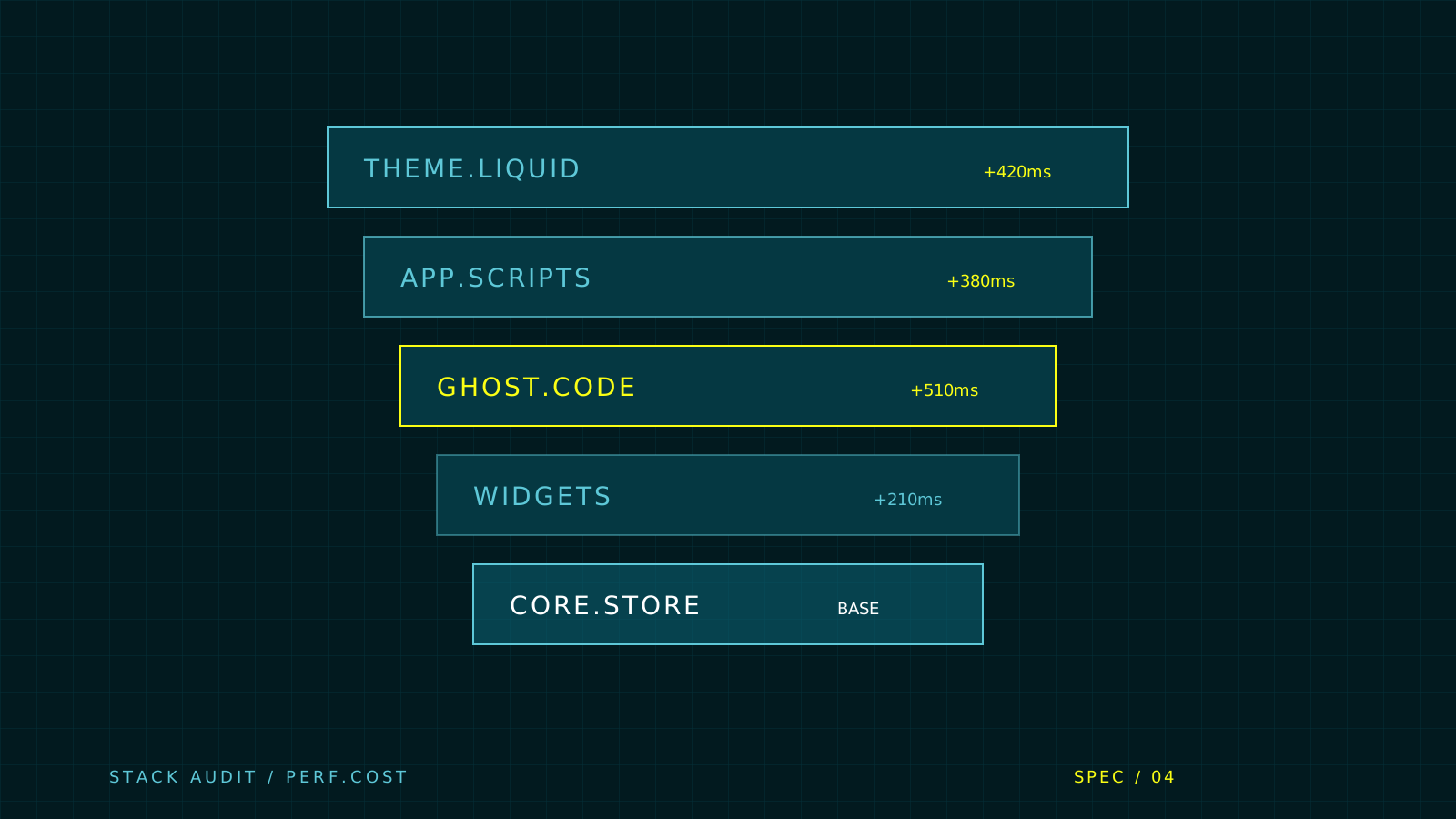
- 01 The average active Shopify store spends $300-600/month on apps—8.7% of stores run duplicate apps in the same category
- 02 Ghost code from uninstalled apps loads on every page and can cut your speed score in half—manual cleanup is required after every uninstall
- 03 Frontend apps (reviews, chat, popups) are the performance killers—backend apps (inventory, fulfillment, accounting) have zero speed impact
- 04 Shopify's native features have quietly replaced many common app categories—audit whether your 2-year-old app installs are still necessary
Here’s a scenario we see constantly: an outdoor brand comes to us because their Shopify store is slow. PageSpeed score in the 30s. Mobile experience is painful. Conversion rate is declining.
We open the theme code and find 23 script tags from 14 different apps. Five of those apps were uninstalled months ago—but their code is still loading on every page. Two apps do the same thing. Three haven’t been updated in over a year.
The store isn’t slow because Shopify is slow. The store is slow because it’s carrying 1.8MB of JavaScript from apps the owner forgot they installed.
This is app bloat. And it’s quietly draining revenue from outdoor brands that should be converting better.
The Scale of the Problem
A study of 340,000 Shopify stores by StoreInspect found that the average store runs 2.5 apps—but that number is misleading. Stores with real traffic paint a different picture: stores above 1 million visitors average 7.3 apps. As your store grows, apps accumulate.
More revealing: 8.7% of stores run duplicate apps in the same category. Email marketing is the worst offender—nearly 6,000 stores run both Klaviyo and Mailchimp simultaneously. That’s two apps loading scripts, competing for the same data, and charging separate subscriptions for overlapping functionality.
The financial cost is substantial on its own. Mid-tier stores (3-5 apps) spend $100-200/month. Active stores with 6-10 apps spend $300-600/month. But the subscription fees are the visible cost. The invisible cost is what’s actually killing you.
The Invisible Costs Nobody Talks About
Cost #1: Performance Tax
Every frontend Shopify app injects JavaScript and CSS into your storefront. The impact per app:
| Script Size | Performance Impact | Category |
|---|---|---|
| Under 50KB | Minimal | Acceptable |
| 50-150KB | Moderate (100-200ms) | Evaluate necessity |
| Over 150KB | Significant (200-500ms) | Must justify its existence |
A single poorly optimized app can drop your PageSpeed score by 15-20 points.
Here’s where the math gets painful: we’ve established that every 100ms of load time costs roughly 1% in conversion. If your store does $5M/year and you’re carrying 800ms of unnecessary app bloat, that’s potentially $400K in lost revenue annually.
That $29/month review widget isn’t costing you $29. It’s costing you thousands.
Critical distinction: Not all apps have a frontend footprint. Backend-only apps—inventory management, fulfillment, accounting, order processing—run entirely server-side and have zero impact on page speed. The performance killers are frontend apps that inject scripts into what your customer sees:
- Review widgets
- Live chat and support widgets
- Email/SMS popup builders
- Page builders and visual editors
- Social proof notifications (“John from Denver just bought…”)
- Upsell and cross-sell popups
- Loyalty and rewards widgets
- Currency converters
- Size chart tools
Every one of these loads JavaScript on every page, whether the customer interacts with it or not.
Cost #2: Ghost Code
This is the silent performance killer that surprises every store owner who hears about it for the first time.
When you uninstall a Shopify app, it does not remove its code from your theme.
Uninstalling only revokes the app’s admin access. The Liquid snippets it injected into theme.liquid, the JavaScript files it added to your assets, the CSS it embedded—all of it stays. Loading on every page. For every customer. Forever.
The result is “ghost code”—scripts from apps you uninstalled months or years ago, still running in the background. We’ve seen stores with ghost code from 8+ uninstalled apps, each one generating 404 errors as the browser tries to fetch resources from servers that no longer respond.
Those 404 errors aren’t just failed requests. The browser waits for each one to time out before moving on, adding hundreds of milliseconds to your load time for absolutely nothing.
How to find ghost code right now:
- Open your live store in Chrome
- Open DevTools (F12) → Console tab
- Look for “Failed to load resource: the server responded with a status of 404” errors
- Each one is a dead script from an uninstalled app
We’ve seen cleanup of accumulated ghost code improve speed scores from 40/100 to 80/100. That’s not optimization—that’s just removing dead weight.
Cost #3: Conflict Tax
Apps don’t exist in isolation. They share the DOM, compete for event listeners, and sometimes directly conflict with each other.
Common conflicts in outdoor stores:
- Two apps trying to modify the cart drawer simultaneously
- Review widget JavaScript breaking quick-view modal functionality
- Popup apps fighting over z-index priority
- Multiple apps adding event listeners to the same “Add to Cart” button
- Currency converters conflicting with dynamic pricing apps
These conflicts create bugs that are maddening to diagnose because they only appear when specific app combinations interact. Your developer spends hours tracking down an issue that exists only because two apps were never designed to coexist.
Cost #4: Data Fragmentation
Each app creates its own data silo. Your reviews live in Judge.me. Your email data lives in Klaviyo. Your loyalty data lives in Smile. Your customer support data lives in Gorgias. Your analytics live in three different dashboards.
No single system has a complete picture of your customer. You can’t answer basic questions like “What’s the lifetime value of customers who leave reviews?” without manually correlating data across platforms.
This fragmentation makes personalization harder, attribution murkier, and decision-making slower.
The Audit Framework
Here’s the system we use to evaluate every app in a Shopify store. Run through this for each app you have installed.
Step 1: Categorize Every App
Create a spreadsheet with every installed app and classify each one:
| Column | What to Record |
|---|---|
| App name | Self-explanatory |
| Monthly cost | Subscription fee |
| Category | Reviews, email, chat, analytics, etc. |
| Frontend impact | Yes/No (does it inject scripts into storefront?) |
| Last used | When did you last actively configure or rely on this? |
| Overlap | Does another app or native Shopify feature cover this? |
| Business impact | Revenue-critical / Operational / Nice-to-have |
Step 2: Measure Frontend Impact
For every app with a frontend component:
- Open Chrome DevTools → Network tab → filter by JS
- Identify scripts from each app (usually the app name or vendor domain is in the URL)
- Note the file size of each script
- Use the Coverage tab (Ctrl+Shift+P → “Coverage”) to see how much of each script is actually executed
If an app loads 200KB of JavaScript but only 30% is executed on any given page, that’s 140KB of dead code slowing down every page load.
Step 3: Test Impact in Isolation
On a development/preview theme:
- Run a baseline PageSpeed test
- Disable one app at a time (remove its embed or deactivate its script)
- Re-test PageSpeed after each removal
- Document the speed improvement per app
This gives you a concrete number: “The loyalty widget adds 340ms to every page load.”
Now you can make an informed decision: Is this loyalty widget’s contribution to revenue worth 340ms on every page?
Step 4: Apply the Decision Matrix
For each app, ask:
Is it revenue-critical? Payment processing, inventory sync, shipping—these stay. Don’t optimize your way into broken operations.
Does another app or native feature do the same thing? If you have overlapping functionality, pick the better one and remove the other.
When was it last meaningfully used? If the answer is “I’m not sure” or “a few months ago,” it’s a candidate for removal.
Does the business impact justify the performance cost? A chat widget that converts 0.5% of visitors might not justify 400ms on 100% of page loads. A review widget that lifts conversion by 12% probably does.
What to Replace, What to Keep, What to Kill
Kill Immediately
Apps you installed and forgot about. Every store has them. If you can’t articulate what an app does for your business in one sentence, uninstall it.
Duplicate apps in the same category. You don’t need two email platforms, two review apps, or two analytics tools. Pick one, migrate data if needed, and remove the other.
Apps replaced by native Shopify features. Shopify has quietly absorbed functionality that used to require apps:
| Previously Required App | Native Shopify Alternative |
|---|---|
| Basic email marketing | Shopify Email |
| Automation workflows | Shopify Flow (free on all plans) |
| Basic product reviews | Shopify Product Reviews (free) |
| SEO meta tags, sitemap, redirects | Built-in SEO tools |
| Discount rules and scripts | Shopify Functions + Checkout Extensibility |
| Basic analytics | Built-in analytics and reports |
| Simple loyalty (discount codes) | Automatic discounts + customer tags |
If you installed an app for any of these 2+ years ago, check whether Shopify’s native solution now covers your needs.
Replace with Lightweight Alternatives
For apps you genuinely need, evaluate whether a lighter option exists:
Reviews: If you’re using a review app that loads 300KB+ of JavaScript, consider one that uses a server-side rendering approach or lazy-loads entirely. Alternatively, use Shopify metafields to display reviews with zero additional JavaScript.
Chat/Support: Instead of an always-on chat widget, load it on scroll or mouse interaction:
let chatLoaded = false;
function loadChat() {
  if (!chatLoaded) {
    const script = document.createElement('script');
    script.src = 'https://your-chat-widget.com/embed.js';
    document.body.appendChild(script);
    chatLoaded = true;
  }
}
window.addEventListener('scroll', loadChat, { once: true });
window.addEventListener('mousemove', loadChat, { once: true });
This turns a 400ms penalty on every page into a 0ms penalty on initial load.
Social proof popups: “Sarah from Portland just bought…” notifications add JavaScript and make constant API calls. The conversion lift from these is almost always less than the conversion loss from the speed impact. Kill them.
Size charts: A simple size chart doesn’t need a $10/month app loading 100KB of JavaScript. Build it as a static HTML modal in your theme. One-time development cost, zero ongoing performance impact.
Keep (But Optimize)
Email/SMS platform (Klaviyo, etc.): Essential for retention revenue. But audit its script loading—Klaviyo’s default embed can be deferred without impacting functionality.
Reviews (if optimized): Social proof matters for outdoor gear purchases. Keep the best-performing review app, but ensure it lazy-loads and uses efficient rendering.
Analytics: Keep your analytics stack, but load it with defer or async attributes so it doesn’t block rendering.
The Cleanup Checklist
After removing apps, you need to clean up their ghost code. Here’s the process:
1. Search theme.liquid for Dead References
Open your theme code editor and search theme.liquid (or your main layout file) for:
{% include 'app-name' %}or{% render 'app-name' %}<script>tags with URLs containing removed app domains<link>tags loading CSS from removed apps
Delete every reference to an app you’ve uninstalled.
2. Clean the Snippets Folder
Check your snippets/ directory for files named after removed apps. Common patterns:
yotpo-head.liquid,yotpo-bottomline.liquidsmile-init.liquidjudgeme-*.liquidloox-*.liquid
If the app is uninstalled, delete its snippet files.
3. Remove Orphaned Assets
Check your assets/ folder for JavaScript and CSS files from removed apps. These load even though nothing references them if they’re still included via Liquid tags you haven’t found yet.
4. Verify with DevTools
After cleanup:
- Check the Console for 404 errors (should be zero from removed apps)
- Check the Network tab for scripts that shouldn’t be loading
- Run PageSpeed Insights and compare to your pre-cleanup baseline
- Verify all remaining functionality works correctly
5. Document Everything
Create a record of what you removed and the performance impact. This serves two purposes: it justifies the effort to stakeholders, and it creates a baseline for future audits.
Important: Always duplicate your theme before making changes. Ghost code cleanup is low-risk but not zero-risk—a snippet removal could affect something unexpected.
Building a Sustainable App Strategy
The audit is a point-in-time fix. To prevent app bloat from recurring, build discipline into your process:
Require a business case for every new app. Before installing, document: What problem does this solve? What’s the expected revenue impact? What’s the performance cost? Is there a native alternative?
Evaluate frontend impact before installing. Check the app’s Shopify listing for mentions of “lightweight” or “no impact on speed.” Better yet, install on a development theme first and measure the actual impact.
Schedule quarterly app audits. Put it on the calendar. Review what’s installed, what’s being used, and what’s accumulated ghost code. The audit takes 2-3 hours per quarter and prevents months of invisible performance degradation.
Choose platforms over point solutions. An integrated platform that handles reviews, loyalty, and UGC in one tool (like Okendo or Yotpo’s unified offering) creates less bloat than three separate apps doing the same things independently. One script versus three.
Clean up after every uninstall. Make ghost code removal part of the uninstall process, not an afterthought. Remove the app, then immediately clean its code from your theme.
Real-World Impact
Client: A mid-market fly fishing brand (anonymized)
The situation: 12 apps installed, PageSpeed score of 34 on mobile, conversion rate declining for 6 months.
What the audit found:
- 3 apps that hadn’t been used in 6+ months (still loading scripts)
- 2 apps with overlapping functionality (email popup + separate popup builder)
- Ghost code from 4 previously uninstalled apps (generating 404 errors)
- Review widget loading 280KB of JavaScript on every page
Actions taken:
- Removed 3 unused apps + cleaned ghost code
- Consolidated to one popup app, removed the duplicate
- Cleaned ghost code from 4 previously uninstalled apps
- Replaced the review widget with a lighter alternative + lazy loading
- Deferred remaining non-critical scripts
Results:
- PageSpeed: 34 → 72 on mobile
- Page load time: 5.1s → 2.3s
- Monthly app spend: $487 → $215
- Conversion rate: Increased 11% in the following 8 weeks
Total time: 3 days of focused work. ROI: paid for itself in under 2 weeks.
What to Do This Week
- Count your apps: Go to Settings → Apps in your Shopify admin. How many are installed? Can you describe what each one does?
- Check for duplicates: Are you running two apps in the same category? Pick the better one.
- Run the ghost code check: Open DevTools Console on your storefront. Count the 404 errors. Each one is dead code from an uninstalled app.
- Measure your baseline: Run PageSpeed Insights on your homepage, a collection page, and a product page. Record the scores.
- Schedule the audit: Block 3 hours this week. Use the framework above to evaluate every app against its performance cost.
Your Shopify store is only as fast as its heaviest app. And right now, there’s a good chance you’re paying for apps that are doing more harm than good.
Time to clean house.
Need Help Auditing Your Stack?
We help outdoor brands cut through app bloat to build lean, fast Shopify stores. From performance audits to ghost code cleanup to sustainable app strategies.
Not another app to install. A systematic approach to running fewer, better tools.
Let’s audit your stack.
Building past templates? Explore E-Commerce Solutions or run a free site audit .
Start a Project →How many Shopify apps is too many?
There's no magic number—it depends on which apps you're running. A store with 4 well-optimized backend apps will outperform a store with 2 bloated frontend apps. The real question is: does every app with a frontend component (JavaScript/CSS that loads on your storefront) earn its performance cost? If an app adds 300ms to every page load but only impacts 5% of customers, it's probably not worth it.
How much do Shopify apps cost beyond their subscription fee?
The subscription fee is just the visible cost. Hidden costs include performance impact (each frontend app adds 200-500ms to load time, and every 100ms costs roughly 1% in conversion), developer time to manage conflicts and updates, data fragmentation across disconnected tools, and the ongoing risk of app conflicts breaking features after updates. A $15/month review widget that adds 400ms to every page load is costing a $5M store far more in lost conversions than its subscription price.
Do Shopify apps leave code behind when uninstalled?
Yes—this is one of the biggest hidden performance problems. Uninstalling a Shopify app only revokes its admin access. The Liquid snippets, JavaScript files, and CSS it injected into your theme remain, loading on every page even though the app is gone. This 'ghost code' accumulates over time and can drop your speed score from 80 to 40. You need to manually remove leftover code from theme.liquid, your snippets folder, and your assets folder after every app uninstall.
What Shopify apps can I replace with native features?
Shopify has absorbed many features that previously required apps: native product reviews (with metafields), basic email marketing (Shopify Email), automation workflows (Shopify Flow, free on all plans), discount functions (checkout extensibility), SEO basics (built-in sitemap, meta tags, redirects), and basic analytics. If you installed an app for any of these 2+ years ago, check whether Shopify's native solution now covers your needs.
How do I audit my Shopify apps for performance impact?
Open Chrome DevTools on your storefront, go to the Network tab, and filter by JS. Sort by size—anything over 150KB from a third-party app is a significant drag. Then check the Console tab for 404 errors from dead scripts (ghost code from uninstalled apps). Use Shopify's Theme Inspector Chrome extension to see which assets take longest to render. Finally, disable apps one at a time in a development theme and measure the speed change for each.
Ready to build the site or storefront?
Custom websites, commerce platforms, and the systems behind them.


